

Agent Settings
The Settings tab on an agent's detail page lets you manage every aspect of the agent after it has been registered. Open it by navigating to Agents → select an agent → Settings, or by choosing Settings from the ⋮ actions menu in the agent table.
Settings is divided into five sections: General, Risk Configuration, Lineage, API Access, and Danger Zone.
General Settings
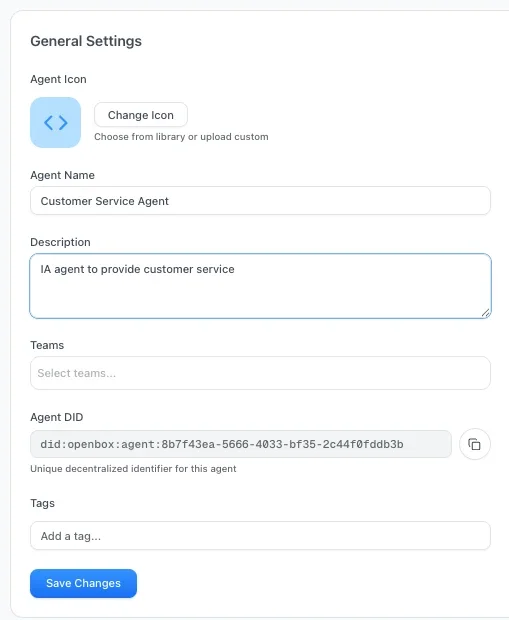
Use this section to update the core identity and organizational assignment of the agent.
| Field | Description |
|---|---|
| Agent Icon | Change the icon from the built-in library or upload a custom image |
| Agent Name | Editable display name shown throughout the dashboard |
| Description | Free-text summary of what the agent does |
| Teams | Multi-select dropdown to assign the agent to one or more teams |
| Agent DID | Read-only decentralized identifier (did:aip:...). Click to copy. Empty until identity is provisioned in API Access |
| Tags | Add freeform tags for filtering and organization |
Click Save Changes to persist any edits.
You can reassign an agent to different teams at any time from this section — you are not limited to the team chosen during registration.
Risk Configuration
This section displays the agent's current risk posture as determined by the Risk Profile parameters.
At a glance you can see:
- Trust Tier badge — the agent's current tier (e.g. TIER 2)
- Risk Level label — human-readable level (e.g. Medium)
- Trust Score — the calculated 0–100 score
Expand View All Parameters to inspect the full set of Base Security, AI-Specific, and Impact parameter values that produced the current score.
Recalculate Trust Score
Click Recalculate Trust Score to trigger a fresh calculation based on the current parameter values. The panel shows a Last calculated timestamp so you can see when the score was last updated.
Adjust Risk Level
Click Adjust Risk Level to modify the underlying risk profile parameters. See the Assess documentation for a full description of each parameter and how it influences the trust score.
Lineage
The Lineage section appears when the agent runtime is linked to a Project. Use it to inspect and update how the runtime maps back to repository history.
| Field | Description |
|---|---|
| Project | Repository project the runtime belongs to. |
| Repository Agent | Logical path-mapped agent inside the project. |
| Linked Branch | Branch associated with this runtime. |
| Branch Status | Whether the linked branch still exists in the connected repository. |
Update Linked Branch
Use the branch dropdown to move the runtime to another synced repository branch. This is useful when a developer changes feature branches, a runtime moves from development to staging, or the previous branch is deleted.
If the linked branch no longer exists, OpenBox shows a warning in the Lineage tab and in this settings section:
Update linked branch to continue receiving lifecycle updates.
Changing the linked branch affects future lineage attribution only. Existing sessions, governance snapshots, and lifecycle events remain preserved for audit history.
API Access

Manage how the agent authenticates with OpenBox. Two independent credentials live here:
- The API key (
obx_live_*/obx_test_*) — the bearer token used on every request - The agent identity — a
did:aip:decentralized identifier and Ed25519 private key used to sign governance requests
The panel shows the API key status and, once provisioned, the agent's DID and signing-enforcement state.
| Detail | Description |
|---|---|
| Primary API Key | Masked key value with an Active status badge |
| Created | Date the key was generated |
| Last used | Timestamp of the most recent API call made with this key |
| Agent DID | did:aip:<uuidv5> once identity is provisioned, otherwise empty |
| Require signed requests | Whether OpenBox rejects governance requests for this agent that aren't AIP-signed |
Rotate Key
Click Rotate Key to generate a new API key. The previous key is immediately invalidated. Copy the new key when prompted — it is only displayed once.
Rotating a key invalidates the old key immediately. Any running agent instances using the old key will fail to authenticate until they are updated with the new key.
Revoke Key
Click Revoke Key to permanently revoke the API key. This is a destructive action — the agent will no longer be able to authenticate and a new key must be generated before it can resume operations.
Provision DID
Visible only when the agent has no identity yet (typically pre-AIP agents).

Click Provision DID to generate a new Ed25519 keypair and assign the agent a did:aip: identifier. The Save Your Agent Credentials dialog opens with the new DID, the plaintext private key, and the SDK environment variables (OPENBOX_AGENT_DID, OPENBOX_AGENT_PRIVATE_KEY) pre-formatted for copy-paste into your agent's secret store.
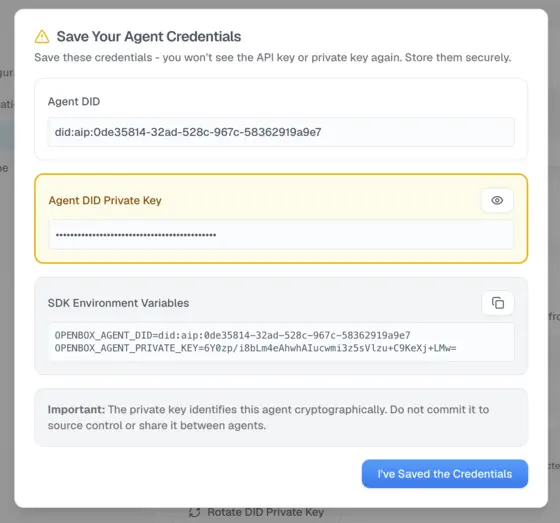
Require signed requests is turned on in the same step — enforcement begins immediately.
The private key is shown once in this dialog and is not stored by OpenBox. Copy it (or the env-var block) before clicking I've Saved the Credentials. If you lose it, use Rotate Private Key.
Enforcement starts the instant provisioning completes. If your agent is taking live traffic, deploy it with the new private key before clicking Provision DID, or any in-flight unsigned request will be rejected. For a soft cutover, untick Require signed requests straight after provisioning, deploy the key, then tick it again.
Rotate Private Key
Visible once identity is provisioned.
Click Rotate Private Key to issue a fresh Ed25519 keypair for the agent. The DID, API key, and governance history are unchanged. The new private key is shown once.
| What changes | What stays the same |
|---|---|
| Private key (update the agent's secret) | DID |
| API key | |
| Governance history |
Signatures produced with the old key stop verifying as soon as the rotation completes. Update the agent's environment and redeploy before triggering rotation in production.
Require signed requests
A checkbox that appears once the agent has a DID, controlling whether OpenBox rejects unsigned governance requests for it.
| State | Behaviour |
|---|---|
| Checked (default after provisioning) | OpenBox rejects any governance request for this agent that isn't signed or fails signature verification. |
| Unchecked | Explicit exemption — OpenBox accepts unsigned requests. The DID and signing key stay in place so you can re-enable enforcement without re-provisioning. |
Agents without a DID don't show this checkbox; they always accept unsigned requests until you provision identity.
See Agent Identity for the concept overview.
Danger Zone
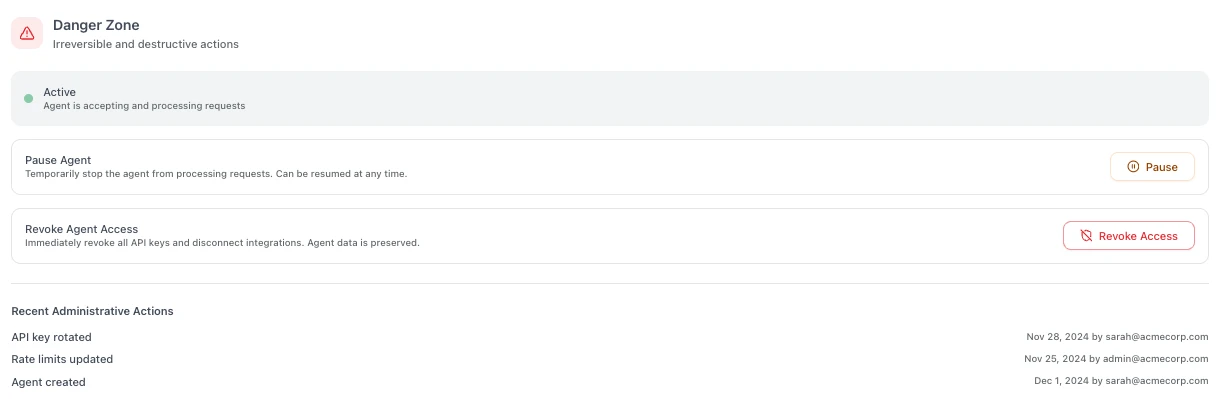
Actions in this section have significant impact on the agent's operational status and cannot always be easily undone.
The current agent status is displayed at the top of the section (e.g. Active, Paused, or Revoked).
Pause Agent
Temporarily stops the agent from processing requests. While paused:
- The agent cannot start new sessions
- Existing in-flight sessions will complete but no new work is accepted
- The agent can be resumed at any time to restore normal operation
Revoke Agent Access
Immediately revokes all API keys and disconnects any active integrations. This is a permanent action:
- All API keys are invalidated
- Active integrations are disconnected
- The agent's data and history are preserved for audit purposes
- The agent cannot be reactivated — a new agent must be registered to replace it
Revoking an agent is irreversible. Use Pause if you only need to temporarily disable the agent.
Recent Administrative Actions
An audit trail at the bottom of the Danger Zone shows a chronological log of key changes made to the agent, including:
- API key rotations and revocations
- Rate limit updates
- Status changes (paused, resumed, revoked)
- Agent creation event
Each entry shows the action, timestamp, and the user who performed it.
Next Steps
- Wrap an Existing Agent — Already have a Temporal agent? Add the OpenBox trust layer
- Run the Demo — Clone the demo repo and see governance in action
- Agents — View and manage all registered agents